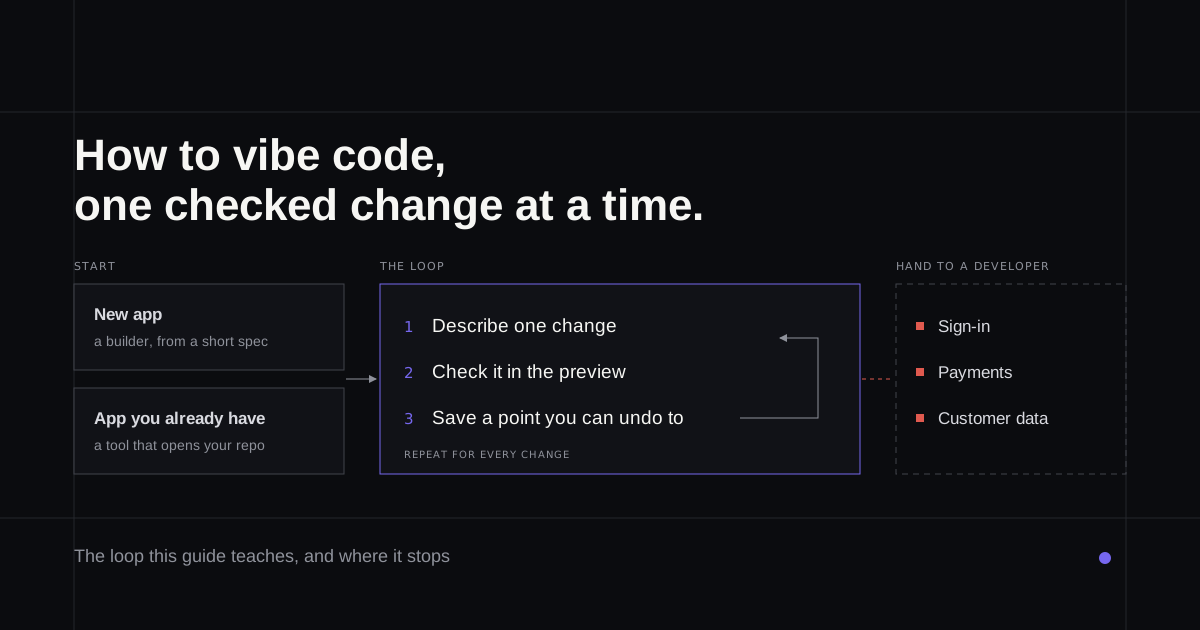
You've got an idea for a small app, or a change you've wanted in your company's app for months, and people keep telling you that you can now just describe it. They're mostly right. This guide shows how to vibe code step by step, following one example from the first prompt to a published app, and marks where describing stops being enough.
Say you run a pottery studio and want a page where people book a seat in your Saturday wheel-throwing classes.
What vibe coding is
Vibe coding is building software by telling an AI what you want and judging the result by using it. The term comes from a post on X by Andrej Karpathy on 2 February 2025, describing a way of coding where you "forget that the code even exists."
That's fine while you build. Before strangers use the app, someone has to remember the code again, and most of the steps below are about deciding when that someone is you.
Step 1: Decide where you're starting
There are two starting points, and they need different tools.
A new app. You want a builder that starts from a blank page. The best vibe coding tools sorts those by job, and if you're torn between a builder and a coding agent, Lovable vs Claude Code covers that choice. Or have a developer build version one through Refinar's Foundation build.
An app you already have. Say a freelancer built the studio's website and its code sits in a GitHub repository. Some builders can't open that at all. Lovable, for one, always creates a new repository when you connect GitHub, and its Git sync docs say it can't import an existing one (as of 4 October 2026).
That second path is what Refinar is for. You connect the repository, describe the change or click the part of the page you mean, and watch an AI agent make it while your real app runs in the preview. If a change involves sign-in, payments or customer data, it isn't published automatically. Refinar builds what it safely can and writes your developer a brief for the rest, and if you have no developer, one of Refinar's developers reviews it within 4 hours on business days (how it works).
The steps below work on either path.
Step 2: Write a short spec before the first prompt
Ten minutes in a notes app saves an hour of prompting, because the AI fills every gap you leave with a guess. Say what the thing does, who uses it, what's out of scope for now and how you'll know it's done.
What:      booking page for Saturday wheel-throwing classes
Who:       customers booking a seat; me, checking who's coming
Must:      next four Saturdays, one 10:00 class each, 8 seats;
           name, email and phone; a confirmation; full classes marked full
Not yet:   payments, customer accounts, cancellations
Feel:      cream and dark green, plain friendly words, works on a phone
Done when: I can book on my phone and see the booking in a list
"Not yet" is the line that earns its keep, since it stops the AI building a login system you never asked for. If you think in pictures, sketch the screens in a prototyping tool first; Claude Design alternatives looks at a few.
Step 3: Turn the spec into a first prompt
Turn the spec into a paragraph about what the person using the page sees. Ask for the smallest version that works and leave the rest of the list for later.
Build a one-page booking site for a small pottery studio's Saturday wheel-throwing classes. Show the next four Saturdays, each with one class at 10:00 and 8 seats. A visitor picks a class, enters their name, email and phone number, then sees a confirmation with the date and time. When a class has no seats left, show it as full and don't let anyone book it. No payments and no accounts yet. Cream background, dark green buttons, friendly wording, and it must work well on a phone.
When the result appears, use it before you type anything else. Book a seat, then seven more, and check the class turns full. That tells you more about what the AI understood than its own summary will.
Step 4: Change one thing at a time and check each one in the preview
If you keep one vibe coding best practice from this post, make it this. A prompt asking for three changes gets you three half-checked changes, and when something breaks you won't know which one did it.
So instead of this:
Make it look nicer, add a waitlist for full classes and let people cancel.
send these one at a time, each after the last one checks out:
Show the seats left on each class, like "3 of 8 left".
Under the form, add: "Bring an apron. Clay and firing are included."
When a class is full, replace the Book button with "Join the waitlist", which asks for an email.
After each one, do in the preview what a customer would do, and look at phone width too. If it's nearly right, say exactly what's off ("the seat count is pale grey, make it dark green"). The same request in the same words rarely gets a different answer.
Step 5: Make save points, and know what undo can't undo
Most builders keep a history. Lovable turns every change into a version and lets you bookmark the good ones (version history), and Replit's Agent creates checkpoints you can roll back to (checkpoints and rollbacks). When the booking page works on your phone, mark it with a plain name like "booking works, before waitlist".
Here's what catches people out. Undo takes you back to the old code, not the old data. Lovable's docs say a revert restores code only, so the database stays as it was. Replit's rollback skips the database too unless you tick the option to include your development database, and the production database isn't restored this way (both checked on 4 October 2026). If a bad change wiped test bookings, going back a version won't bring them back, so treat any change to stored data as a bigger step than a layout tweak.
Step 6: Describe bugs so the AI can fix them
"The booking is broken, fix it" gives the AI nothing to go on, so it guesses, and guessed fixes tend to break things nearby. Write the bug up like a tester would, with where you were, what you did, what you expected and what happened.
On my phone (Safari), I booked the 10:00 class on Saturday 17 October.
The confirmation appeared, but the class still says "8 of 8 left",
even after a refresh. I expected 7. On my laptop the count goes down
correctly. Find the cause and explain it before changing anything.
The last sentence does the most work, because asking for the cause first stops the AI patching over the symptom. Paste any error message word for word, and attach a screenshot for anything visual.
How to get out of a fix loop
You'll recognise it. The AI says it's fixed, the bug returns in a slightly different shape, and each attempt touches more of the app. Lovable's debugging guide (read on 4 October 2026) says to stop after one or two failed fixes and look for the root cause. That's a good rule in any tool.
- Stop asking for fixes. Ask the AI what it has already tried and why the bug happens, in simple terms. Lovable's Plan and Chat modes answer without changing code; elsewhere, start with "don't change any code yet".
- Go back to your last save point if the attempts have tangled things. Say what you reverted and try again in smaller steps.
- Start a fresh conversation with a three-line summary. A long chat drags every old wrong guess along with it.
- Hand it over if that hasn't worked. A developer reading the code will often spot what another prompt won't.
Step 7: Leave sign-in, payments and customer data to a developer
Back to the studio. The page and the form are safe to vibe code, because when they're wrong you can see it. Two parts aren't. The bookings list holds names, emails and phone numbers, and the page where you read it needs a proper lock, which makes it a sign-in question. And the day you take deposits, you're handling payments.
Mistakes there don't show in a preview. The demo works, and the problem appears when a stranger finds the list or a card gets charged twice. Have someone who reads code check the lock, the database rules and the payment flow before real customers' details go in. What non-developers can change maps that boundary for a whole team, and vibe coding security shows what happens when nobody checks.
Step 8: Get the code into GitHub
Once the page works, put the code somewhere you own. A GitHub repository keeps the history outside the builder and lets a developer in without your password. It also means you aren't stuck if you outgrow the tool. Lovable's sync to github.com is on every plan, including Free, and runs both ways (its docs, 4 October 2026); Lovable to GitHub covers the parts that confuse people. If a freelancer set it up, make sure the business owns it. A short AGENTS.md at the root then tells any coding agent how to run and test the app (AGENTS.md vs CLAUDE.md).
Step 9: Review before you publish
Publishing is where mistakes reach customers, so slow down. Use the app as a stranger would, on a phone, with an email address that isn't yours, and try the awkward cases like a full class or the back button halfway through booking. Then ask the AI for a plain-English list of every file it changed and why, and question anything unrelated to bookings. How to review AI-generated code when you're not a developer has the questions to ask and the answers that should make you pause.
Step 10: Keep it working after launch
The app's second life starts the day someone books a real seat. Every change now lands on something people rely on, and the same vibe coding workflow applies with more at stake. Keep changes small and check each one in a preview, with a save point behind it. When a customer reports a problem, write it up the way step 6 does before you prompt.
Expect the code to get messier as the prompts pile up. AI tends to add code and rarely tidies it, and after a few months small changes start breaking screens nobody touched. Vibe code cleanup covers what to fix then and when it's worth paying someone.
If your booking page, or whatever you end up building, already lives on GitHub, try your next change on Refinar.