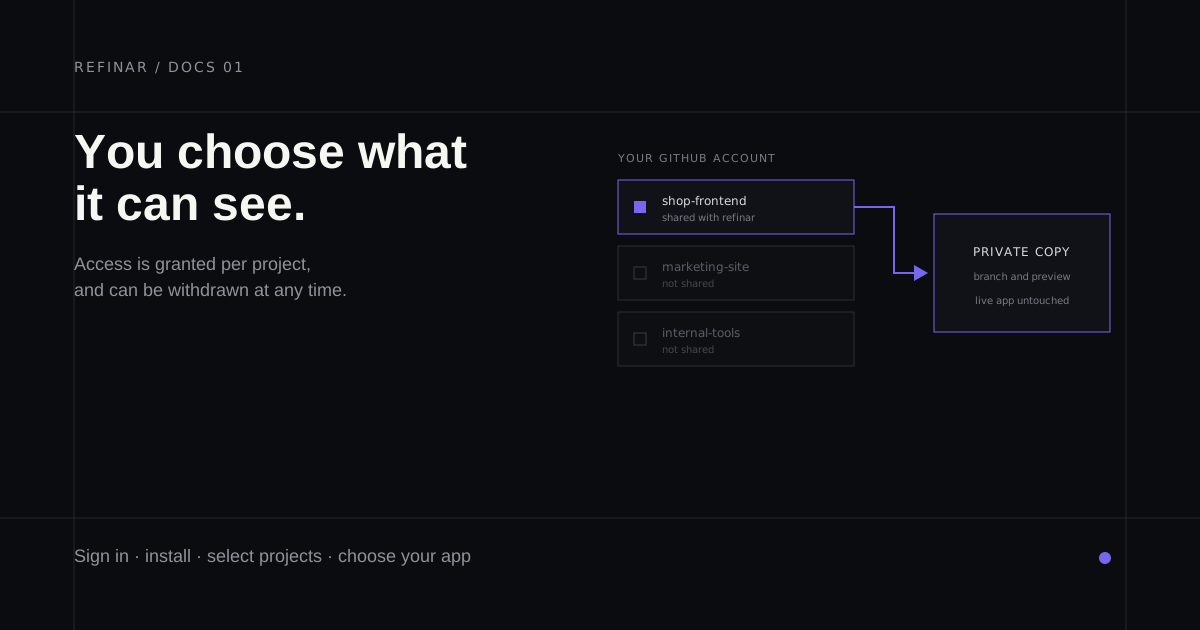
Refinar works on your real app, so the first thing it needs is access to the GitHub project that app lives in. The connection is deliberately narrow: you name the projects it may see, and it works on a private copy of the one you pick.
Nothing you do in this guide changes your live app. The first moment anything reaches production is when you publish, which is a separate decision covered in publishing a change.
What the connection actually grants
Refinar asks for access to specific repositories, not to your GitHub account as a whole. Within a repository it needs to read and write code, open and update pull requests, and file issues when work has to be handed to a developer.
| Permission | Why it is needed |
|---|---|
| Contents (read and write) | Clone the project, create a branch, and commit the change |
| Pull requests (read and write) | Open the review, keep it in sync, and mark it ready |
| Issues (read and write) | File the brief when a change needs a developer |
| Metadata (read) | Required by GitHub for any installation |
There is no permission here for your deployment settings, your secrets, or any repository you did not select.
Sign in, then install
The flow asks about GitHub twice, and the two requests are not the same thing.
The first is signing in. This identifies you and nothing more; it does not give Refinar access to any code. The onboarding screen says so directly: signing in with GitHub does not automatically give Refinar access to your apps.
The second is installing the Refinar app on your account or organisation. This is the step where you choose repositories. GitHub's own installation documentation describes the screen you will see.
Some accounts are asked to confirm a third time, to link the GitHub identity to the Refinar account. That confirmation is what lets Refinar check, at the moment of each change, that you personally still have permission to write to the project. Permission is re-checked against GitHub rather than remembered from setup.
Choose the projects Refinar can see
On the installation screen, select individual repositories rather than granting access to everything. Start with the one app you actually intend to work on.
Widening access later takes a few seconds. Narrowing it after an incident is a worse conversation to have.
If you are an organisation member without admin rights, GitHub will send the installation to an owner for approval. That is a GitHub policy, not a Refinar setting.
Choose the app you want to refine
After installation you pick which of the shared projects to open. Only the repositories you granted appear here — if one is missing, it was not included in the installation, and the Manage GitHub access link takes you back to change that.
Refinar then checks the project for outside services it depends on, such as a database or a payment provider. This scan reads the project through the GitHub API. It changes nothing, and you can connect those services later; Refinar only needs credentials for a service when a change actually uses it.
Why your live app is unaffected
Once a project is connected, work happens on a branch and runs in an isolated preview. Your production deployment, your production database and your customers see none of it.
This is the same separation a developer would create by hand before touching a live system, and it is why the connection can be granted without the usual anxiety. The safe update workflow describes the reasoning behind working this way.
Changing or removing access
Access is yours to withdraw. In GitHub, under your account or organisation settings, open the installed applications list and either change which repositories are shared or uninstall Refinar entirely.
Uninstalling stops all future access immediately. Work already pushed to your repository stays where it is, as ordinary branches and pull requests you own — there is nothing to extract from Refinar afterwards.
If the repository list is empty
An empty list almost always means the installation completed without any repository selected, or it completed on a different GitHub account than the one you are signed in with.
Check both in order:
- Open Manage GitHub access and confirm at least one repository is shared.
- Confirm the account holding the installation is the account you signed in with. A personal account and an organisation are separate installations.
- Use Refresh list after changing anything on GitHub.
If the project belongs to an organisation with approval rules, the installation may be waiting on an owner. Nothing will appear until they approve it.
Next
With a project connected, the next decision is what happens to a finished change: publish a change, or share it for review.