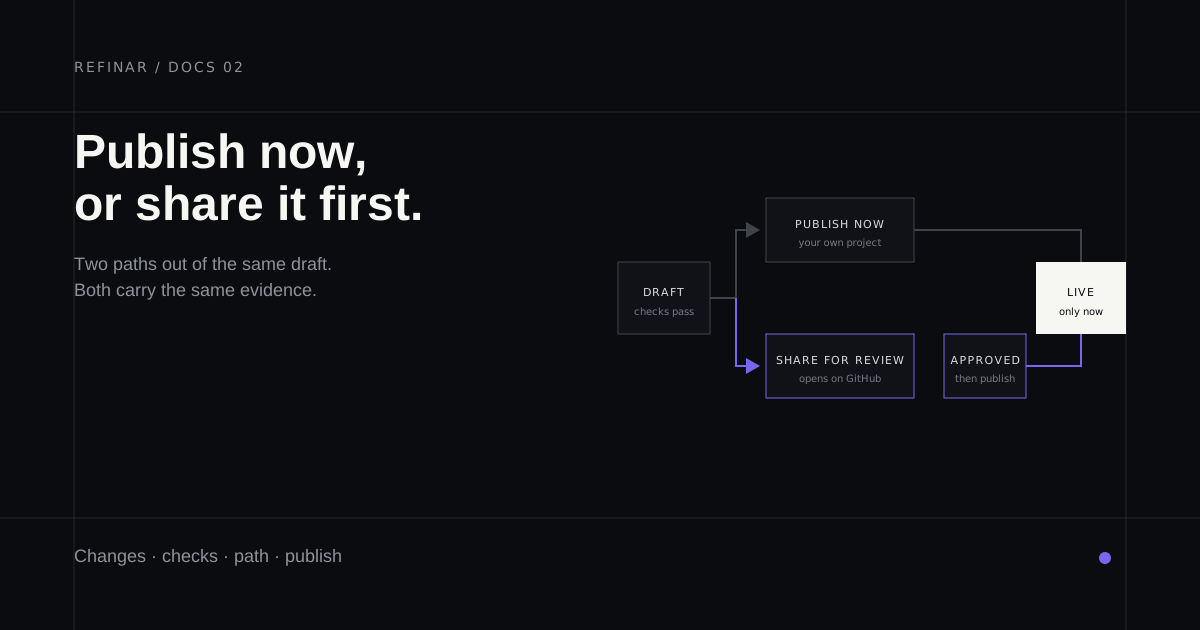
Every change you ask for accumulates in a draft. A draft holds the conversation, the changed files, the running preview and any checks that were run — and none of it reaches your live app until you publish.
When the preview looks right, you have one decision to make: publish it yourself, or send it to someone else first.
Read the changed files before anything else
The preview shows you the result. It cannot show you the cost of that result.
Open the Changes view and read the file list before the individual lines. The list answers the question that matters most: did this change stay inside the area you asked about? A wording fix that also touched authentication, a migration file, or a dependency lockfile is worth understanding before it goes anywhere.
You are looking for scope, not correctness:
- The changed files match the outcome you asked for.
- No credentials or production data were added.
- Dependency changes have an obvious reason.
- Nothing unrelated was reformatted along the way.
Run the checks
The Checks view runs the approved commands for your project — typically lint, types, tests or a build. These are your project's own scripts, run inside the isolated preview.
A passing check is evidence that the change works mechanically. It is not evidence that the change is correct: no test knows whether your new price is the price you meant. Read the preview for that.
If a check fails or has not finished, Refinar will say so at the publish step rather than letting it pass silently. You can rerun it, or acknowledge the unresolved result explicitly and continue.
Choose a path
Both paths produce the same change. They differ in who sees it before your customers do.
| Publish now | Share for review first | |
|---|---|---|
| Goes to your live app | Straight away | After you return and publish |
| Who sees it first | You | Your reviewer, on GitHub |
| Best for | Projects you own and review yourself | Anything touching systems others depend on |
| Where it waits | Nowhere — it is done | GitHub, and your team's Requests list |
Choose review when the change touches authentication, customer data, payments, secrets, migrations or deployment settings — the areas where a mistake is expensive and a second reader is cheap. How to change a live app without breaking it covers where that line usually falls.
Sharing for review
Sharing opens the change on GitHub as a pull request and puts it in front of a person.
You can name a specific reviewer or leave it open to anyone. A named reviewer is requested on GitHub and the change also waits for them in Requests. Leaving it unassigned means it sits in Requests for whoever picks it up first.
If your reviewer has not connected a GitHub account, GitHub cannot notify them — they will still find the request inside Refinar. Refinar tells you which of these happened rather than assuming the message arrived.
Your reviewer receives more than a diff. They get the original request, the transcript of how the change was built, the changed files, and the live preview of the running result.
One caution: once you have shared a draft, rewinding it rewrites the version your reviewer is looking at, and comments they left can be lost. Finish the conversation before you rewind.
When an app requires review
An owner or admin can lock an app so changes cannot skip review (Setup → Publishing → Changes need approval first). On a locked app, members only see Send for review. Once an owner, admin or developer approves the draft, the member who made it can publish it.
An approval covers the draft as the reviewer saw it. If anyone asks for another change after that, the draft needs approving again before it can go live. Owners, admins and developers can always publish directly, because they could approve their own draft anyway.
The same Setup tab holds Rules for the AI: a few sentences saying what the AI's job is on this app. The AI reads them before every request. When a request falls outside them, it builds only the part the rules allow and hands the rest to your team, instead of doing it anyway.
What publishing actually does
Publishing writes the change into your project's default branch. Two consequences follow immediately.
The first is that Undo stops working. Up to this point Refinar can reverse its own work; afterwards, reversing means a revert on GitHub like any other change.
The second is deployment. If your project deploys automatically when its main branch moves, publishing is the moment it goes live. If Refinar hosts your project (Setup → Hosting), publishing deploys it: the site at its refinar.app address, or your own domain, shows the change a few minutes later. Otherwise your existing pipeline deploys it, on its own schedule.
Publish when someone is available to watch the result, not at the end of a Friday.
How the change is recorded
Before publishing you can choose how the draft is written into your project's history. This changes the shape of the record, never the change itself.
- Squash — the whole draft becomes a single commit. The cleanest history, and the usual choice.
- Merge — each step you asked for stays as its own commit under a merge commit.
- Rebase — each step replayed onto your project as a linear sequence.
If your repository enforces a particular merge method, that rule wins.
When part of the work is handed to a developer
Sometimes Refinar builds the part it can do safely and stops at the part it cannot. Rather than guessing, it hands that remainder to a developer with the request, the reason it stopped, and everything already built attached.
You can still publish the finished portion, which is often the right call when it stands on its own. If it does not — half a checkout flow is worse than none — leave it unpublished until the handed-off work returns.
The request is tracked in Requests from Waiting to be handed over through to Done, so the unfinished half is not something you have to remember on your own.
Related
- Connect your app to GitHub — granting access and choosing a project.
- What is a staging environment? — the wider workflow this fits into.
- Web app security checklist — before making larger changes.